Instructions
Share, manage & organize bookmarks on your chrome browser across your organization, departments, and employees. Introducing…. Peer2Peer Bookmark Sync and Share for Teams! The easiest and most convenient way to train new team members and increase team-wide awareness of online tools and by sharing research resources.
You can share, manage, and sync any bookmarks with employees, co-workers, teammates, and customers in shared Peer2Peer Bookmark Sync and Share for Teams groups just with a few simple steps:
STEP 1:
Saving a bookmark
Links can be added to Peer2Peer Bookmark Sync and Share for Teams just as you would to other bookmark folders. Here are the steps to take:
- Click on the
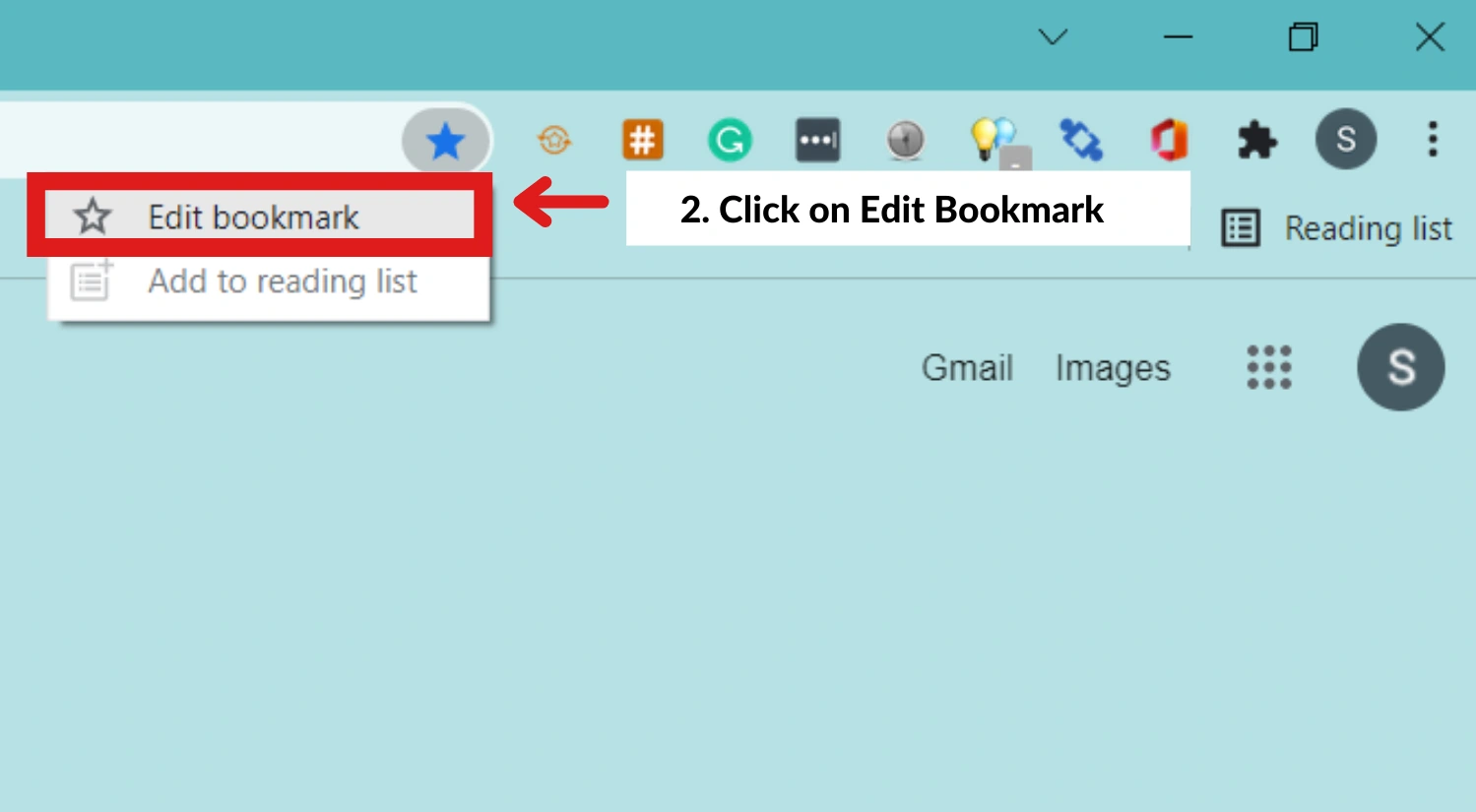
STAR icon on the extreme right side of the URL bar. - Then click on the EDIT BOOKMARK option.
- Add the desired name to your file in the NAME section. (For Example: Name your file as “Social Media Update”)*
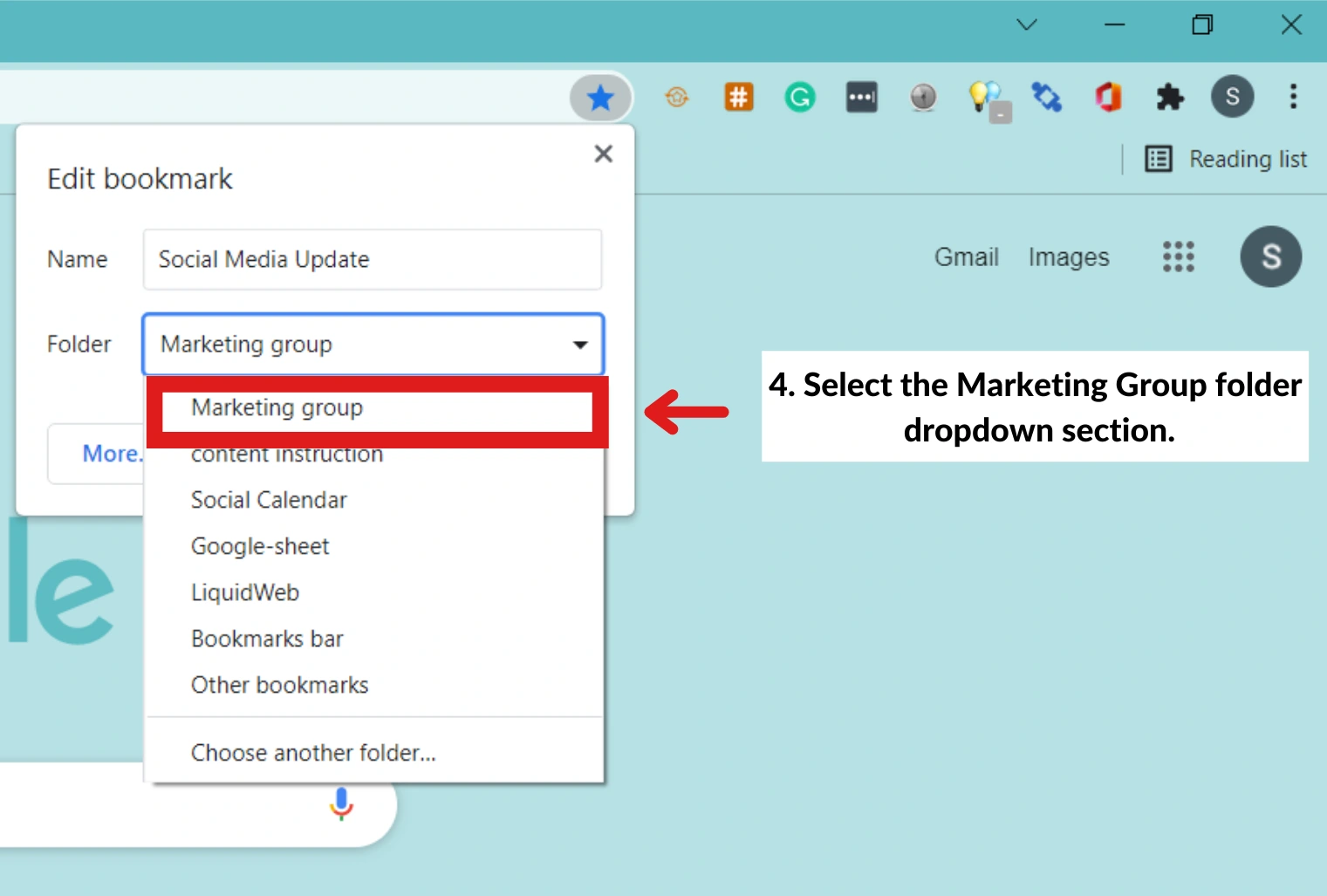
- Select the preferred folder from the FOLDER dropdown section. (For Example: Select the Marketing Group folder dropdown menu)*
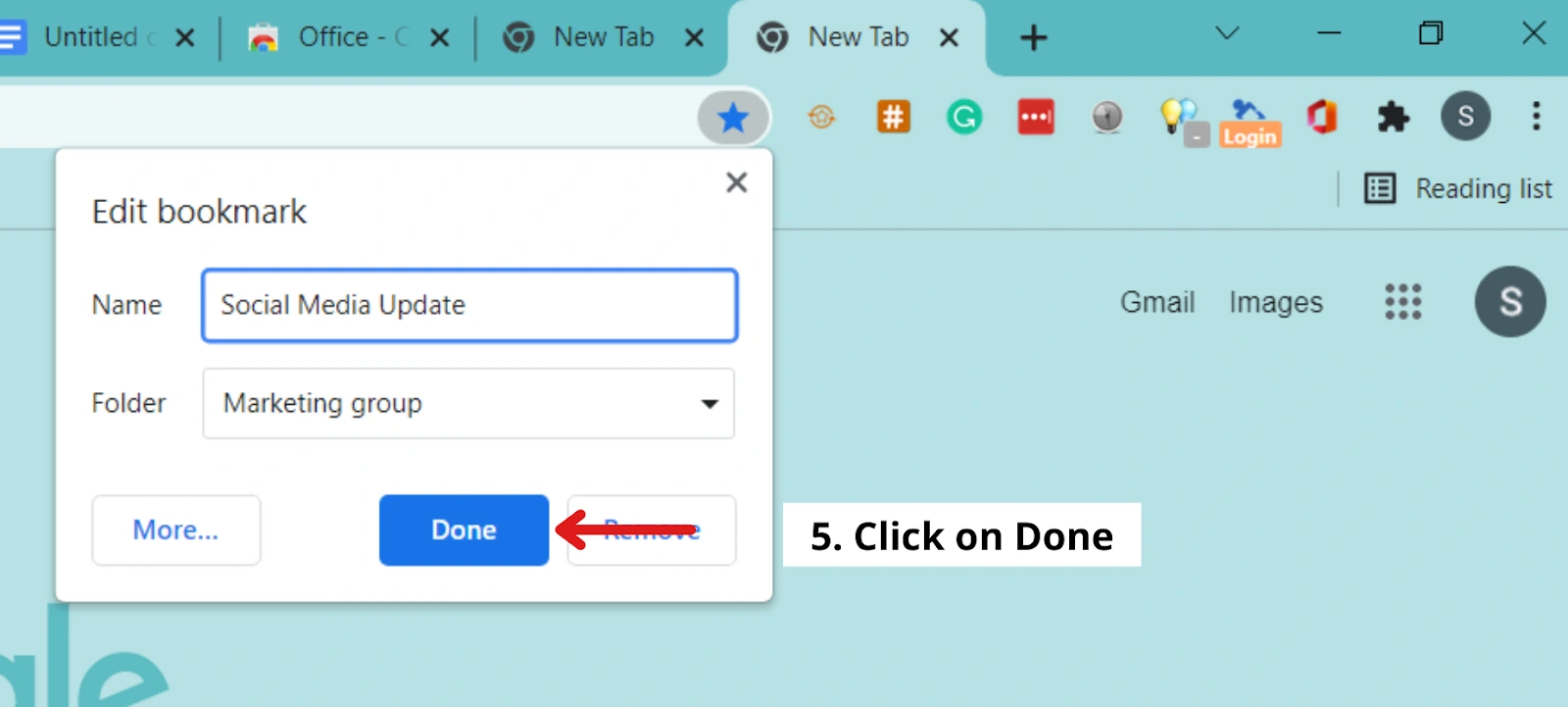
- Click on DONE once you have selected the folder.
*Refer to the Screenshots below*
** Make sure that the bookmark name is descriptive enough for other Group members to locate.
STEP 2:
Finding a bookmark
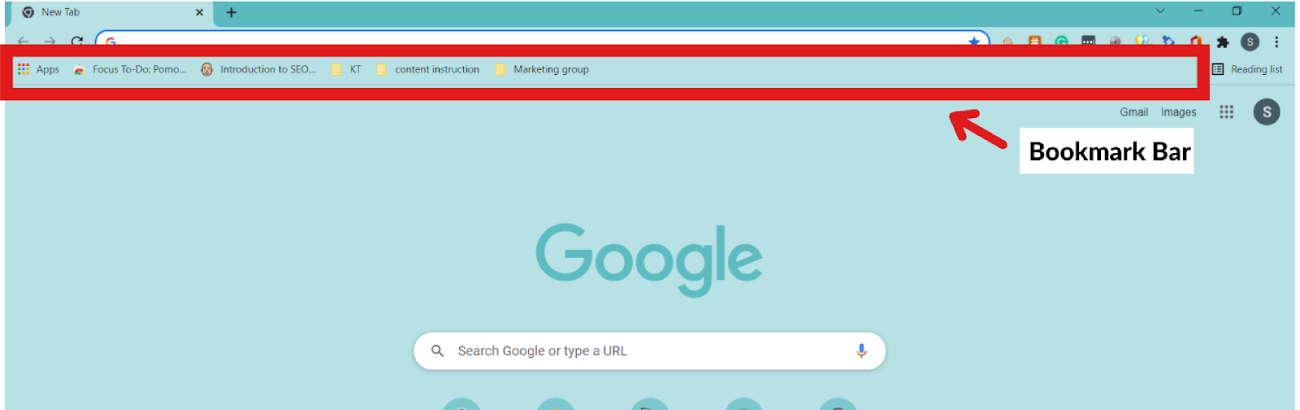
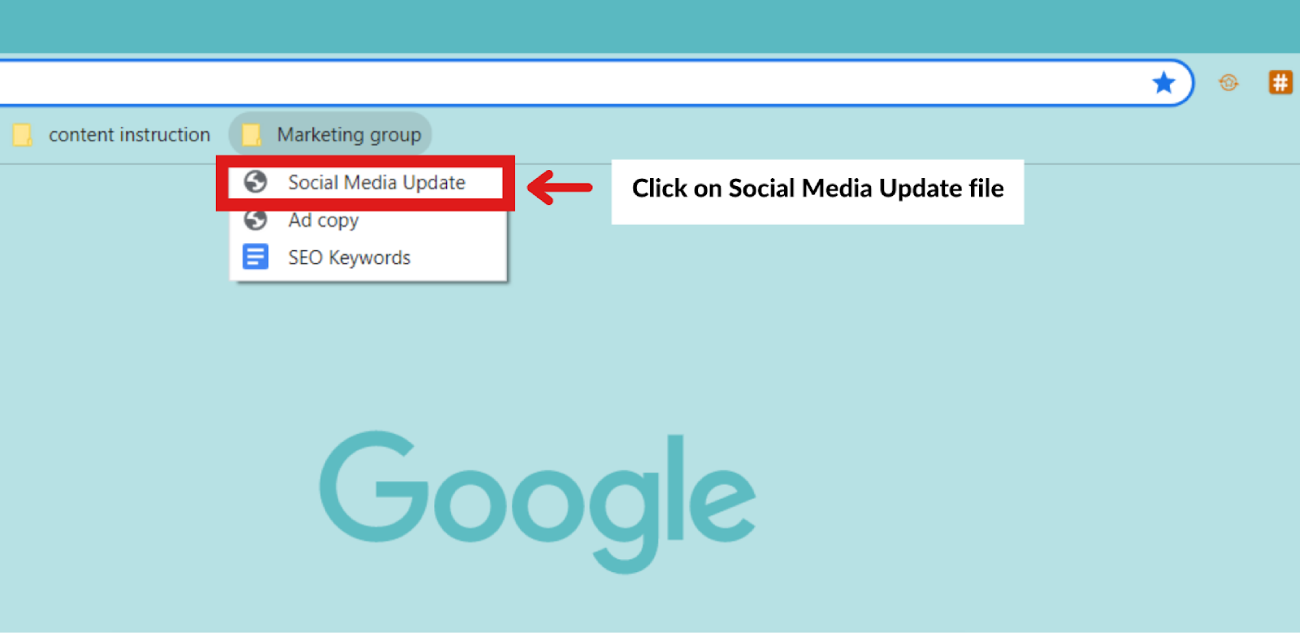
- The FOLDER should appear on the bookmark bar.
-
Click on the FOLDER on the bookmark bar.
(For Example: Click on the Marketing Group folder on the Bookmark Bar)* -
Select the desired FILE from the drop-down menu.
(For Example: Select the Social Media Update file from the drop-down menu)* -
Click on the required FILE to open it.
(For Example: Click on Social Media Update file to open it)*
*Refer to the Screenshots below*
Note: In Chrome, Peer2Peer Bookmark Sync and Share for Teams will automatically appear in the Other Bookmarks folder if you can’t see them on the Bookmark Bar. If you can’t find this folder, you’ll need to enable the bookmarks bar.
Question: How to enable a bookmark bar in Chrome?
- Click the
icon at the end of the top right-hand corner. - Search for the Bookmarks option (just below downloads).
- Select Show Bookmarks Bar or use Ctrl+Shift+B.
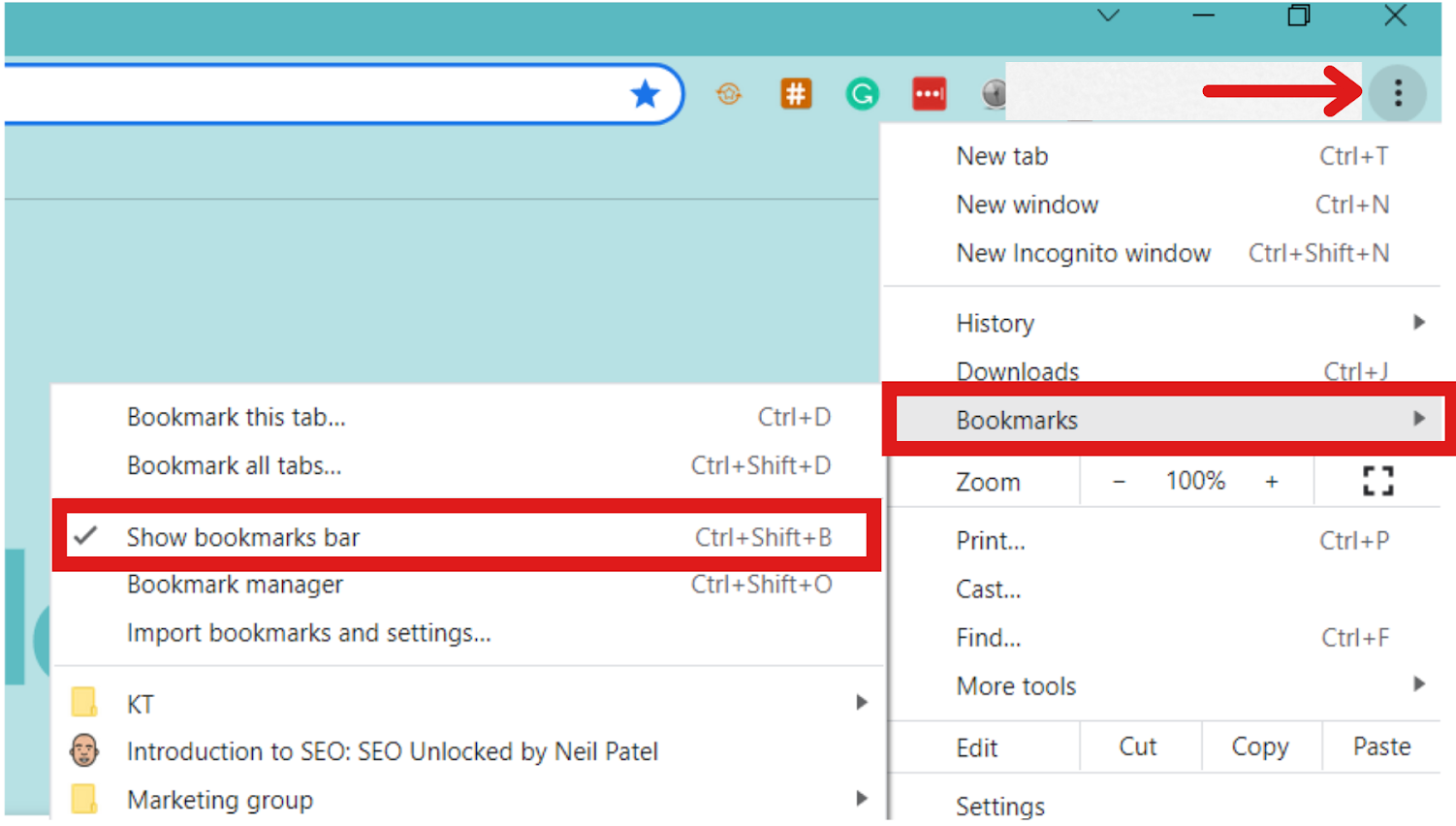
** You can find Group folders in the Bookmarks bar or under Other Bookmarks.
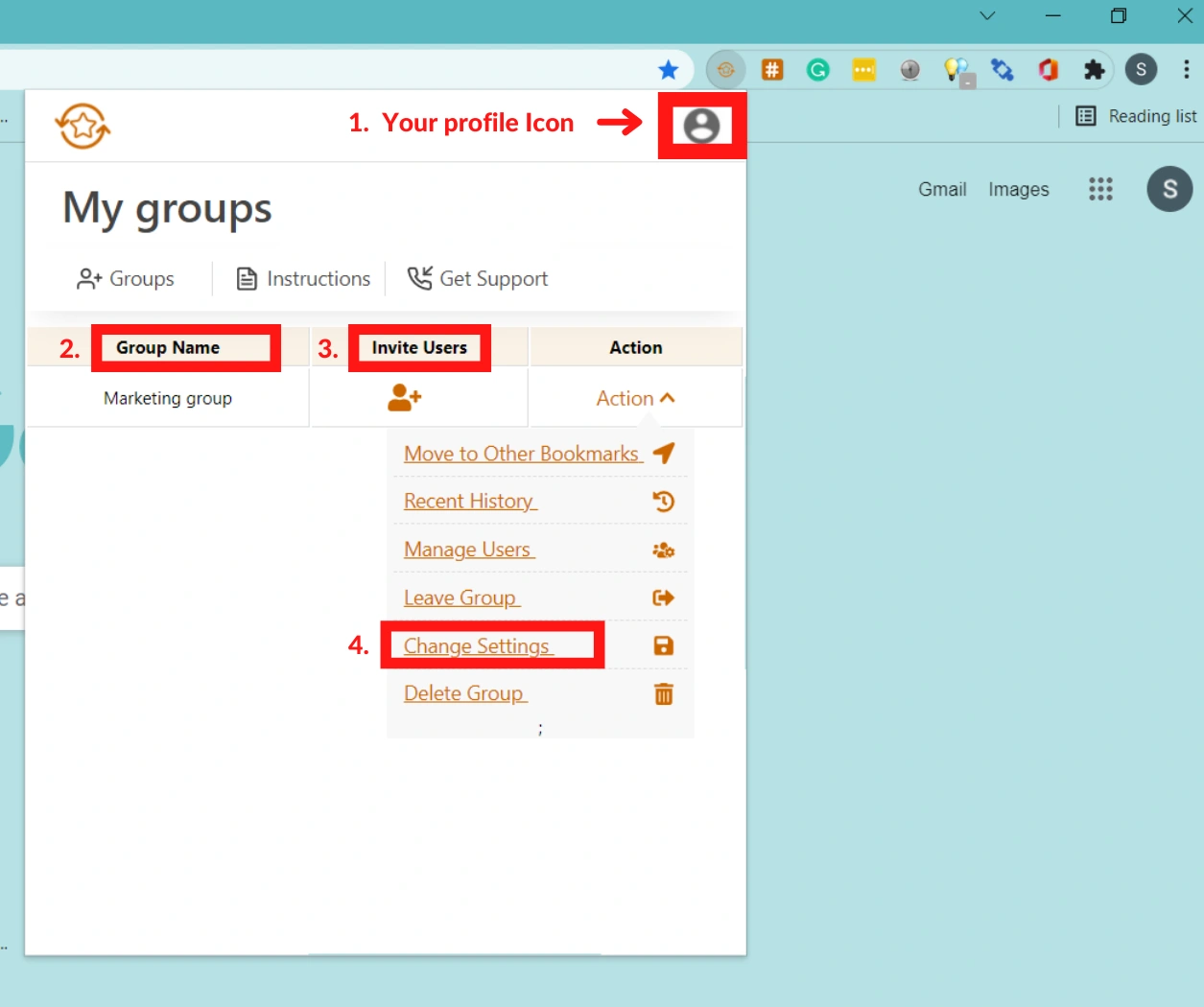
Quick Guide for Kuware Bookmarks Sync Plug-in
- Your profile is where you can update your account information.
- Group Name is the title of the group that you have joined or created.
- Invite Users icon is where you invite various users to the group.
- Change Settings icon is where you find all settings for the bookmarks group.